
Hang a picture frame
Choose Horizontal and Wall placement. Rest the phone’s horizontal screen edge on the frame’s top edge. Adjust gently, then listen for the tolerance beep.
 Spirit Level
Check a surface, align an edge, or measure a slope with your phone.
Lay your phone flat on the surface.
Simulated angles · not a real measurement
Adjusting a shelf with both hands? Enable voice control, then say “hold” to freeze the reading or “resume” to continue. Commands are in English.
Optional microphone access · supported browsers only. Say “stop listening” to turn it off. Your browser may process audio through its speech provider.
Choose Horizontal and Wall placement. Rest the phone’s horizontal screen edge on the frame’s top edge. Adjust gently, then listen for the tolerance beep.
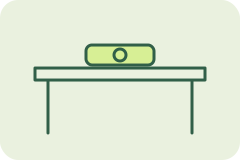
Choose Dual Axis and Surface. Rest the phone face up with even contact. Check left-to-right and front-to-back tilt before adjusting the feet.
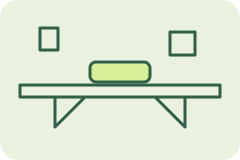
Check different points along the shelf using the same phone edge. Enable voice control and say “hold” to freeze a reading while your hands are busy.
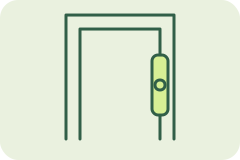
Use for a doorframe or post that must stand upright in both directions. Wall is selected automatically. Align the vertical screen edge with the upright, top of screen up. The line shows sideways lean; the number combines sideways and forward/backward lean. The total is always positive or zero.

Use Dual Axis on a flat tripod platform before attaching the camera. A centred bubble helps you compare both tilt directions; verify the final camera horizon separately.

Select Inclinometer and align the horizontal screen edge with the slope. Read degrees and percentage grade, then save readings from different positions for comparison.
For everyday checks only. Camera bumps and uneven cases affect contact. Use an appropriately calibrated physical instrument for precision work, structural decisions or compliance checks.


This free spirit level uses your phone’s orientation sensors. Open it directly in a mobile browser and tap Start measuring. Allow motion access if prompted, then wait for a reading. Remove a thick or uneven case and make sure the phone rests on a straight edge rather than its camera bump. The display stays blank when sensor data is unavailable.
Use for desks, tables or camera platforms. Choose Surface, lay the phone face up with even contact, and adjust until both axes approach 0°. In Wall mode it shows sideways and forward/backward lean separately.
Use for a shelf or the top of a picture frame. On Surface, lay the phone face up to check left-to-right tilt. On Wall, keep the screen upright and rest its horizontal edge along the line you want level.
Use for front-to-back tilt on a tabletop or forward/backward lean of a wall or post. On Surface, lay the phone face up. On Wall, point the screen’s top upward and keep the phone’s back flush against the surface, or align its vertical edge in the direction of lean. The signed reading passes through 0° at upright; leaning toward and away moves the bubble to opposite sides. It does not include sideways lean—check that with Horizontal or Plumb Line.
Use for a doorframe or post that must stand upright in both directions. Wall is selected automatically. Align the vertical screen edge with the upright, top of screen up. The line shows sideways lean; the number combines sideways and forward/backward lean. The total is always positive or zero.
Use to compare a sloping board or shelf. Align the horizontal screen edge with the slope. Select Surface when the phone is face up, or Wall when upright. Read the signed angle and percentage gradient; 45° equals 100% grade.
Rest the phone flat, screen facing upward, with stable contact. Dual Axis checks both directions, Horizontal checks left/right and Vertical checks front/back. A camera bump or thick case can tilt the phone; avoid uneven contact.
Point the top of the screen upward. Keep the back flush for a wall check, or use a straight screen edge along the object. Horizontal checks sideways tilt, Vertical checks forward/backward lean, and Plumb Line checks total deviation from upright. In landscape, follow the screen’s current edges.
Before reading: tap Start measuring, allow motion access if requested, then wait for the phone to settle. Reset zero if you previously set a relative reference. The bubble reaches the end beyond ±15°; the number continues to show the measured angle.
A phone spirit level is useful for quick DIY checks, but accuracy depends on sensors, positioning and contact with the surface. A displayed decimal is not an accuracy guarantee. Set zero creates a relative reference; it does not prove the reference surface is level. Reset clears that offset. A flat surface can still slope, and a short phone cannot reveal every dip along a long shelf. Verify precision work with a calibrated physical level.
Both help you check alignment, but they measure it differently. An online level uses your phone’s orientation sensors. A traditional spirit level uses an air bubble in a liquid-filled vial. A dedicated digital level is a separate electronic instrument with its own specified accuracy; it should not be confused with a phone app.
| Feature | Online / phone level | Physical spirit level |
|---|---|---|
| Reading | Angle in degrees, virtual bubble and slope percentage. | Bubble position between reference lines; most standard vials do not show numerical angles. |
| Accuracy | Depends on phone sensors, case, contact points and reference settings. | Depends on the instrument’s specification, condition and correct use. |
| Contact length | A short phone edge samples a small area. | A longer rigid body spans more of a shelf or frame and provides a straight edge. |
| Power and access | Needs battery power and browser sensor permission. | A traditional vial needs neither batteries nor internet. |
| Best use | Convenient everyday checks, angle comparisons and saved readings. | Repeated site work and longer surfaces; use a suitably specified, checked instrument for precision. |
For a quick picture-frame check, your phone may be convenient. For precision installation, use a calibrated instrument appropriate to the job. Setting a phone’s zero on an unknown surface makes it a relative reference—it does not establish true level.
A bubble level checks whether something is horizontal or vertical. Common uses include aligning shelves, frames, furniture and camera supports. Phone versions estimate orientation using device sensors.
Yes, if your phone and browser provide motion sensor access. Open Spirit Level directly, tap Start measuring and allow access. Most desktop computers cannot supply the required readings.
It is free to use in your browser. No separate app installation is required.
No. Spirit Level is an independent tool. It is not owned, operated or endorsed by Google.
Select Inclinometer and align the horizontal screen edge with the slope. Read the angle and percentage gradient. Percentage grade equals 100 multiplied by the tangent of the angle.
Tap Start measuring and check motion permissions. Open the page directly in a supported phone browser. Embedded browsers may block sensors. Demo mode does not use real sensor data.
No. Set zero only makes the current position your relative reference. Use a known level surface for comparison, and reset the offset when you want the original sensor reference.
Sensor data is processed in your browser. Saved readings remain in local browser storage until you clear them. Optional voice control uses the browser’s speech recognition service, which may send audio to its provider. Spirit Level does not store audio or transcripts. This tool includes no advertising or analytics scripts; the hosting provider may process normal access logs.